
Imperial Knights Steam Cloud saves
What syncs, what does not, and how to keep Kagura's patch and Steam Cloud from fighting each other.
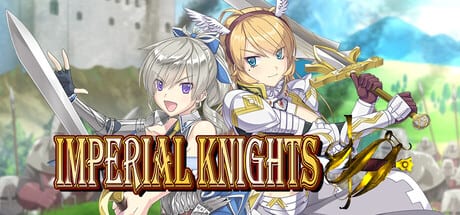
Imperial Knights on Steam ships with Steam Cloud support. The store page lists Steam Cloud as a feature category, and Kagura’s English storefront build saves to the standard RPG Maker MV www/save directory, which Steam’s Cloud layer syncs by default. This page covers what syncs, what does not, and the most common ways a save gets confused between two PCs or between the Steam build and Kagura’s separate DRM-free copy.
For the broader story behind the Steam build, the Kagura patch guide explains the v1.00 extra-content zip and how it differs from the storefront version. For the route-level save advice (manor saves before the guild, save before bosses), the walkthrough is the right page.
What Steam Cloud actually saves here
RPG Maker MV titles save player data to a local www/save folder. Steam Cloud treats that folder like any other user data and syncs it across the PCs signed into your Steam account. The Steam app page for Imperial Knights (app 4353650) lists Steam Cloud as a supported feature category, which confirms the sync layer is enabled on the English build.
In practical terms that means:
- Saves sync between PCs you sign into with the same Steam account.
- Settings do not always sync. UI, key bindings, and similar local preferences live outside the save folder and may differ between machines.
- Achievement progress does not exist here. Imperial Knights has no Steam achievements on the current build, so there is no progress to sync.
- Workshop or cloud-only DLC does not apply. This game does not use either system.
If a save does not appear on a second PC after Cloud syncs, the section on stuck Cloud sync below covers the usual causes.
Where saves live on disk
The Steam build installs to the default steamapps/common/Imperial Knights folder. Inside that folder, RPG Maker MV titles write saves to:
steamapps/common/Imperial Knights/www/save/Each save slot is a small .rvdata2 file (sometimes a folder of files for MV save headers). The folder is tiny — usually under a few megabytes across every slot — so copying it manually as a backup takes seconds.
For Kagura’s separate DRM-free Windows copy, the install location is wherever you chose during install, but the save folder is the same: www/save/ relative to the game executable. Do not copy saves between the Steam build and the Kagura DRM-free build without testing on a copy first. The Kagura patch guide has the longer explanation; the short version is that the two builds can disagree on file presence.
Steam Cloud versus a patched folder
The Kagura v1.00 patch adds adult-content scenes and costume variants the storefront build trims. Steam Cloud happily syncs saves between a patched and an unpatched install if both PCs are signed into the same account. That creates one common failure mode:
- PC A is patched and clears a route.
- Cloud uploads the cleared save.
- PC B is unpatched and downloads that save.
- PC B’s gallery is missing the thumbnails the patch would have added.
Cloud did nothing wrong. The save is fine. The missing thumbnails are a build-level difference, not a save corruption. To avoid this:
- Keep both PCs on the same patch level if you play on more than one machine.
- Turn Steam Cloud off temporarily while you experiment with the patch.
- Or keep one PC the Steam Cloud source and the other offline / DRM-free.
Family Sharing on Steam does not grant access to Kagura’s store downloads. Patch files are tied to Kagura accounts that bought the game there, not to anyone borrowing the Steam copy. The patch guide walks through this in more detail.
How to force a Cloud sync
Most of the time Steam Cloud syncs in the background when the game closes or when Steam itself detects the launcher is open. If you want to force a one-way sync — say, you want the latest save uploaded before you switch PCs — the steps are:
- In Steam, right-click Imperial Knights in your library and choose Properties.
- Open the General tab and uncheck Keep game saves in the Steam Cloud for Imperial Knights if it is on. Confirm.
- Re-check the same box. Confirm. This forces Steam to compare local and remote state and re-sync.
- Boot the game once and exit cleanly so the local save folder is up to date.
If a save appears stuck or out of date, the same toggle pattern is the usual fix.
Local backup pattern (recommended)
Steam Cloud is a sync layer, not a versioned backup. If you want a real safety net before a major choice (the guild-fee prompt, the bandit hideout outcome, the Ether Knight ritual), copy www/save/ to a dated folder on a USB stick or a non-Steam drive. The folder is small enough that you can do this every time you start a new file.
Specifically:
- Save in the manor before the guild fee prompt. That file is your cross-route insurance — Route 1 / 2 / 3 cannot be switched on the same save, so a pre-fee save is the only way to revisit an earlier branch.
- Save in the room before each named boss. A boss-room save is the local recovery point if a wipe sets a flag you did not want.
- Save in the route’s endgame room before the finale. The castle basement finale triggers permanent ending flags; a save here lets you replay the finale without re-clearing the route.
The completion checklist tracks which route-ending files exist and which ones are still missing.
Cloud sync on a second PC: what to expect
When you boot Imperial Knights on a second PC signed into the same account, Steam Cloud downloads the latest save state. The first launch on that PC can take longer than usual as the cloud layer reconciles. The Steam overlay usually shows a small Cloud icon while it works.
If the second PC shows the title screen and an empty save list, the most common cause is that the title was launched before Cloud finished downloading — the title screen shows the local copy, which is empty on a fresh install. Wait a minute, return to the title screen, and try again. Do not start a new game on the second PC until you are sure Cloud is current, or you risk overwriting a save you wanted.
Stuck Cloud sync troubleshooting
- Save list empty on a second PC. Wait a full minute at the title screen. If still empty, toggle Cloud off and on in Properties (see above). Steam sometimes needs that nudge to compare local and remote state.
- Saves vanished on PC A after playing on PC B. The most common cause is starting a new game on PC B before Cloud finished syncing, which wrote an empty save over your real one. Restore from your local backup. Going forward, do not start a new file on a fresh PC until Cloud reports up to date.
- Cloud keeps uploading the wrong save. Disable Cloud temporarily, fix the local save folder to match what you want, then re-enable Cloud. Steam prefers the most recently modified file when reconciling.
- Antivirus quarantined a save file. RPG Maker MV saves are small
.rvdata2files. A heuristic trip on one of them is unusual; if it happens, exclude the Steam install directory from real-time scanning and restore the file from quarantine. - Patched folder vs unpatched folder conflict. See the section above. Keep both PCs on the same patch level, or keep one offline.
Frequently asked questions about Cloud saves
Does Imperial Knights support Steam Cloud on Steam Deck? Steam Cloud syncs regardless of which PC you boot the game on. Steam Deck is treated as another PC in this respect. The game itself runs on Windows; Steam Deck compatibility is not officially documented, but the Cloud layer works the same way it does on any other Windows machine.
Does the Kagura DRM-free build use Steam Cloud? No. Kagura’s DRM-free Windows copy does not connect to Steam’s Cloud layer. Saves stay local to the install folder you chose. Keep the Steam and DRM-free folders separate and back up the DRM-free folder manually.
Can I play the same save on the Steam build and the Kagura DRM-free build? You can copy saves across, but build-level differences (patched vs unpatched, English vs Japanese) can make copied saves show missing thumbnails or wrong gallery state. Test on a copy of the save before you overwrite the working one.
Does Cloud save include my settings and key bindings? No. Settings live outside the save folder and do not sync. You will need to set up controls and display preferences on each PC.
Where do I see Cloud sync status? Right-click Imperial Knights in Steam → Properties → General tab. The “Keep game saves in the Steam Cloud” checkbox shows the current state. The Steam client overlay shows a Cloud icon while sync is in progress.
Frequently Asked Questions
Quick answers to the questions Imperial Knights players ask first.
Does Imperial Knights support Steam Cloud?
Yes. The Steam app page (4353650) lists Steam Cloud as a supported category, and the standard RPG Maker MV save folder syncs automatically between PCs signed into your Steam account.
Where are Imperial Knights saves stored on my PC?
In the www/save folder inside your Steam install directory (typically steamapps/common/Imperial Knights/www/save). The folder is small, so backing it up manually takes seconds.
Does the Kagura DRM-free copy use Steam Cloud?
No. Kagura's separate DRM-free Windows build does not connect to Steam Cloud. Saves stay in the local install folder and must be backed up manually if you want a safety net.
Can I share a save between the Steam build and the Kagura DRM-free build?
You can copy the save files across, but build-level differences (patched vs unpatched, English vs Japanese) can make the destination show missing thumbnails or wrong gallery state. Test on a copy first.
Why is my second PC showing an empty save list?
The most common cause is launching the title before Cloud finished downloading. Wait a full minute at the title screen and try again. If still empty, toggle Steam Cloud off and on in the game's Properties.
Does Cloud save my key bindings and display settings?
No. Steam Cloud syncs the save folder only. Key bindings, display preferences, and similar local settings stay per-PC and need to be reconfigured on each machine.